Manage Multicurrency Invoicing Anywhere with Glances and QuickBooks

Request, send, and receive payments in the correct currency
Managing the billing process within your country of origin can already get complicated, so when your customers, clients, and vendors work in different countries and require various currencies for payments, it can quickly evolve into an accounting nightmare. Enter Glances, QuickBooks Online, and multicurrency support to handle both USD and non-USD payments (and reduce the stress for all parties involved).
Learn how these specific connections combined with active multicurrency support can turn your dream accounting workflows into a daily reality, no matter what corner of the world you and your customers work from.
Who benefits from multicurrency support?
Outside of any worker that needs to pay or receive funds from one currency to another, here are some additional use cases for connecting QuickBooks with Glances and turning on the multicurrency feature:
- Employees managing multiple product instances, such as two companies within QuickBooks
- Consultants managing multiple QuickBooks platforms on behalf of clients
- Fractional employees assisting with QuickBooks accounting needs for companies
Tip: For anyone managing multiple QuickBooks Online accounts for their company and/or clients, learn how to seamlessly switch teams and app instances on glances.com, directly in the Glances browser extension, or in-app with monday.com.
Multicurrency support overview (and how to enable it)
In simple terms, multicurrency is an available QuickBooks feature that enables your business to pay funds and receive funds in currencies different than your home country’s currency. For example, if your business is based in the United States and uses the US dollar for transactions, you can accurately bill a client located in Europe using euros. More formally, QuickBooks mentions, “Multicurrency allows you to pay and get paid in the foreign currencies of customers, vendors, or bank accounts that don’t use your home currency. Once it’s on, you can add transactions in another currency and QuickBooks handles all currency conversions.”
The benefits of using this QuickBooks feature are 1) the comfort of reviewing an invoice in a currency familiar to you (the same goes for your customers), and 2) the correct conversion rates are automatically applied without you looking up current data or calculating totals.
If you are a QuickBooks user and are interested in this feature, the following support article teaches you how to turn on multicurrency in your QuickBooks Online account. This step must be done first before you can view multicurrency data within your QuickBooks Glances.
Recap: QuickBooks views and Actions using Glances
Did you know that Glances supports about three quarters of the same functions that you would have while using the QuickBooks app alone? Below we’ll cover the growing list of what you can see and do when you connect QuickBooks with Glances.
- View live QuickBooks data while working anywhere online
- Perform multiple QuickBooks Actions without navigating away from work
- Safely give teammates data insights without direct access to QuickBooks
- Avoid costly and problematic 2-way data integrations
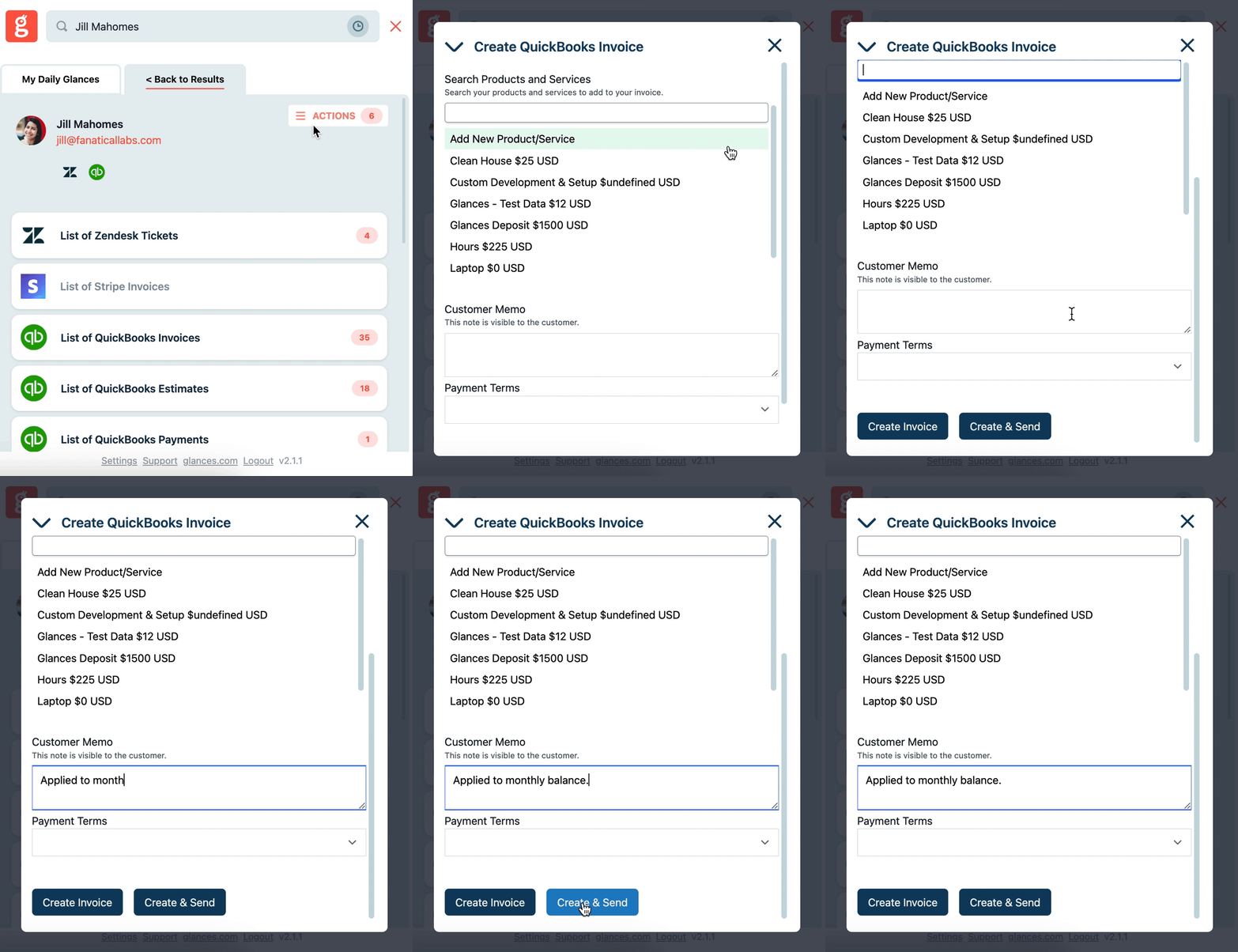
Check out the always-growing list of available Actions for QuickBooks below:
- Create QuickBooks customer (support article)
- Create QuickBooks sub-customer (support article)
- Update QuickBooks customer (support article)
- Create QuickBooks vendor (overview article)
- Create new QuickBooks product or service (support article
- Create QuickBooks invoice (support article)
- Send QuickBooks invoice (support article)
- Duplicate QuickBooks invoice (support article)
- Create QuickBooks estimate (support article)
- Send QuickBooks estimate (support article)
- Convert QuickBooks estimate to invoice (support article)
We’re continually adding more multi-tasking features, so be sure to review a full list of available accounting Actions for QuickBooks on our support site.
Not using QuickBooks? Check out more accounting and payment processing apps that are compatible with Glances.
Integrate all your apps and perform Actions, using Glances
Start your free trial to connect your favorite business apps and access your data in one easy click, from any app or webpage. You can find and connect QuickBooks, monday.com, Stripe and dozens of more apps when you are logged in to your Glances account.
More helpful steps
Schedule a demo to see the time-saving benefits of Glances in action or ask our team questions.
If you need to connect a specific app or platform with Glances that is not currently available on glances.com, please send your requests to hello@glances.com.
Find more step-by-step articles with the latest information on our support site.