Everything You Can Do with QuickBooks Using Glances

Complete QuickBooks work outside of QuickBooks
Does it feel like you “live” in your QuickBooks account during the workday? If you find yourself with a permanent browser tab open for QuickBooks, Glances can support your accounting and billing workflows without the hassles of toggling apps, making data entry mistakes, and constantly switching contexts.
As of this article’s posted date, Glances supports about three quarters of the same functions that you would have while using the QuickBooks app alone. The main differences are, Glances 1) connects your entire stack of business apps, and 2) empowers you and your teammates to view data and complete tasks for QuickBooks (and other apps) while working in any platform or webpage. Below we’ll cover the growing list of what you can achieve when you connect QuickBooks with Glances .
Available QuickBooks Actions
Everything you can do with QuickBooks using Glances
If you are new to Glances, Actions allow you to complete a task in another app directly from Glances. With the list of available Actions for QuickBooks below, you and your teammates can check off daily to-dos more efficiently without needing to navigate away from work. Customers report saving up to 20 minutes per task, which adds up to hours of saved time each week!
- Create QuickBooks customer (support article)
- Create QuickBooks sub-customer (support article)
- Update QuickBooks customer (support article)
- Create QuickBooks vendor (overview article)
- Create new QuickBooks product or service (support article
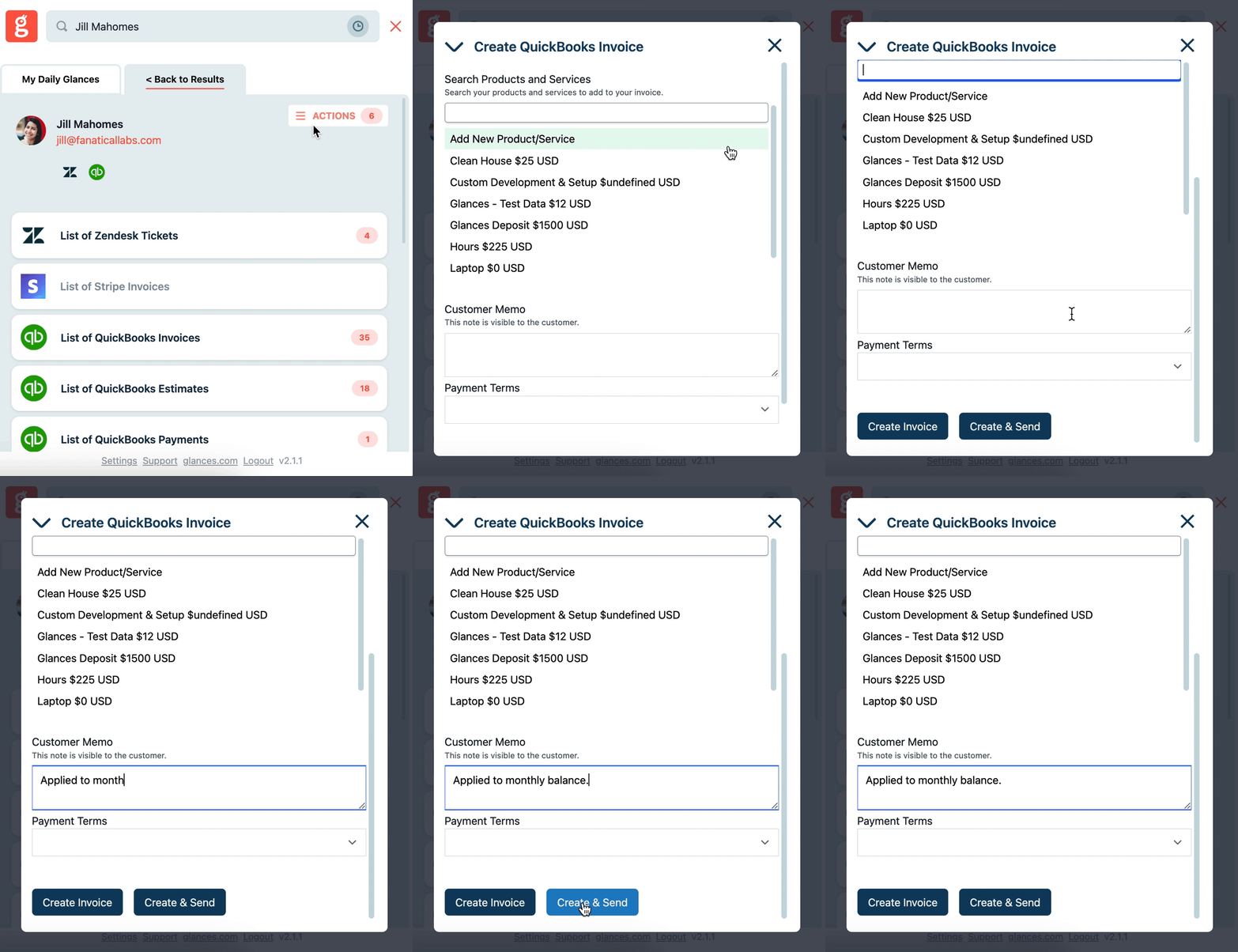
- Create QuickBooks invoice (support article)
- Edit QuickBooks invoice
- Send QuickBooks invoice (support article)
- Duplicate QuickBooks invoice (support article)
- Create QuickBooks estimate (support article)
- Edit QuickBooks estimate
- Send QuickBooks estimate (support article)
- Convert QuickBooks estimate to invoice (support article)
- Create QuickBooks bill (overview article)
Get a snapshot of how easily users can create a new QuickBooks invoice in the quick product animation below. We’re continually adding more multi-tasking features, so be sure to review a full list of available accounting Actions for QuickBooks on our support site.
Available QuickBooks Views
Everything you can view with QuickBooks using Glances
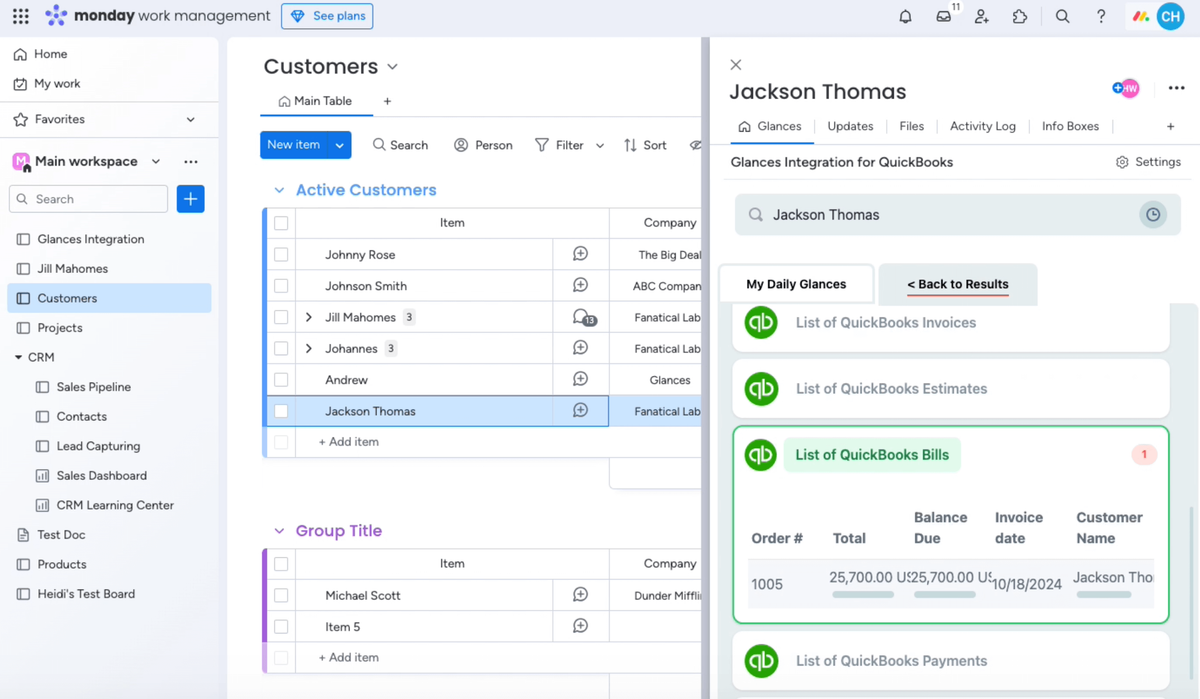
On the most basic level of using Glances, you can instantly see your QuickBooks data anywhere online, alongside data across your other connected applications. Directly within Glances, you can search by customer name (or other criteria) to keep track of your QuickBooks invoices, estimates, bills, sales receipts, and so much more.
Below are some other benefits of using Glances to enhance your experience with QuickBooks.
- Enable users to update data without direct access to main QuickBooks account
- Avoid double data entry and keep the accounting books clean
- Auto-complete forms with Glances pre-filled forms feature
- Manage who can view data and perform Actions with company roles
- Bring back select pieces of data to specific apps with Post-Action app updates
In the product shot below, see how it looks to view a customer's latest billing information in Glances.
What QuickBooks Actions can improve your daily workflow?
Did you know these QuickBooks Actions are possible for all Glances users because our customers requested them? If you have an action or function in mind for any of your apps connected with Glances that will make your workday simpler, we’re here for it. Use our Request an Action calendar to select a time to briefly discuss your current apps and needs with our team.
Integrate all your apps and perform Actions, using Glances
Start your free trial to connect your favorite business apps and access your data in one easy click, from any app or webpage. You can find and connect QuickBooks, monday.com, Stripe and dozens of more apps when you are logged in to your Glances account.
More helpful steps
Schedule a demo to see the time-saving benefits of Glances in action or ask our team questions.
If you need to connect a specific app or platform with Glances that is not currently available on glances.com, please send your requests to hello@glances.com.
Find more step-by-step articles with the latest information on our support site.