New Action for QuickBooks Users: Copy Payment Link

Another Glances function for easier invoicing
We recently recapped everything you can do with QuickBooks using Glances to help you and your teammates save loads of time and stay focused on work without tab toggling and app switching. Our dev team continually adds innovative ways to shorten and automate your time-consuming accounting tasks, so today we’ll unveil the latest QuickBooks Action that helps you copy invoice payment links for any contact, in a flash.
This feature is automatically available for existing and new Glances users. As usual, Glances Actions empower you and your team to handle this task (and many others) directly within Glances, so you can streamline workflows while continuing to work in your preferred platform or website. We’ll show you more on how it works in the section below.
Why this update matters
Do you really want to bother the accounting department for your customer’s payment link and hope they respond quickly? Or, stop what you’re doing to tab toggle your way back to QuickBooks and click multiple times to grab the link yourself? The answer is no; no one wants to waste time on these daily tasks. Take of advantage of this included QuickBooks Action to:
- Enable users to self-serve and access payment links without direct access to main QuickBooks account
- Avoid back-and-forth messages between teammates requesting payment links from accounting
- Copy payment links directly in Glances while answering morning emails, managing projects in monday.com, or navigating anywhere else online!
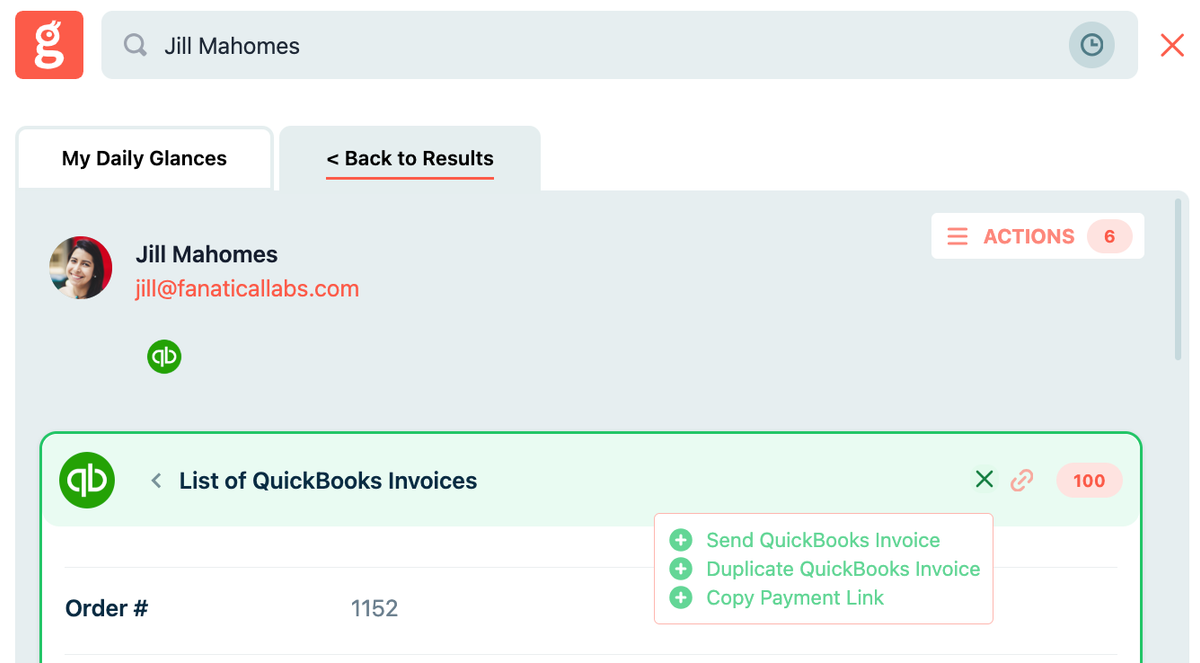
Getting started with this new QuickBooks Action
Once you have connected QuickBooks with Glances, you will have access to a wide variety of QuickBooks Actions, such as creating and sending invoices. Should your workflow require, you can also quickly copy the customer-facing payment link. This is the link that customers use to view and pay their invoice. In order for this link to be available, you must:
- Have enabled payment links on QuickBooks
- Have an email address for the customer in QuickBooks
How to copy the payment link
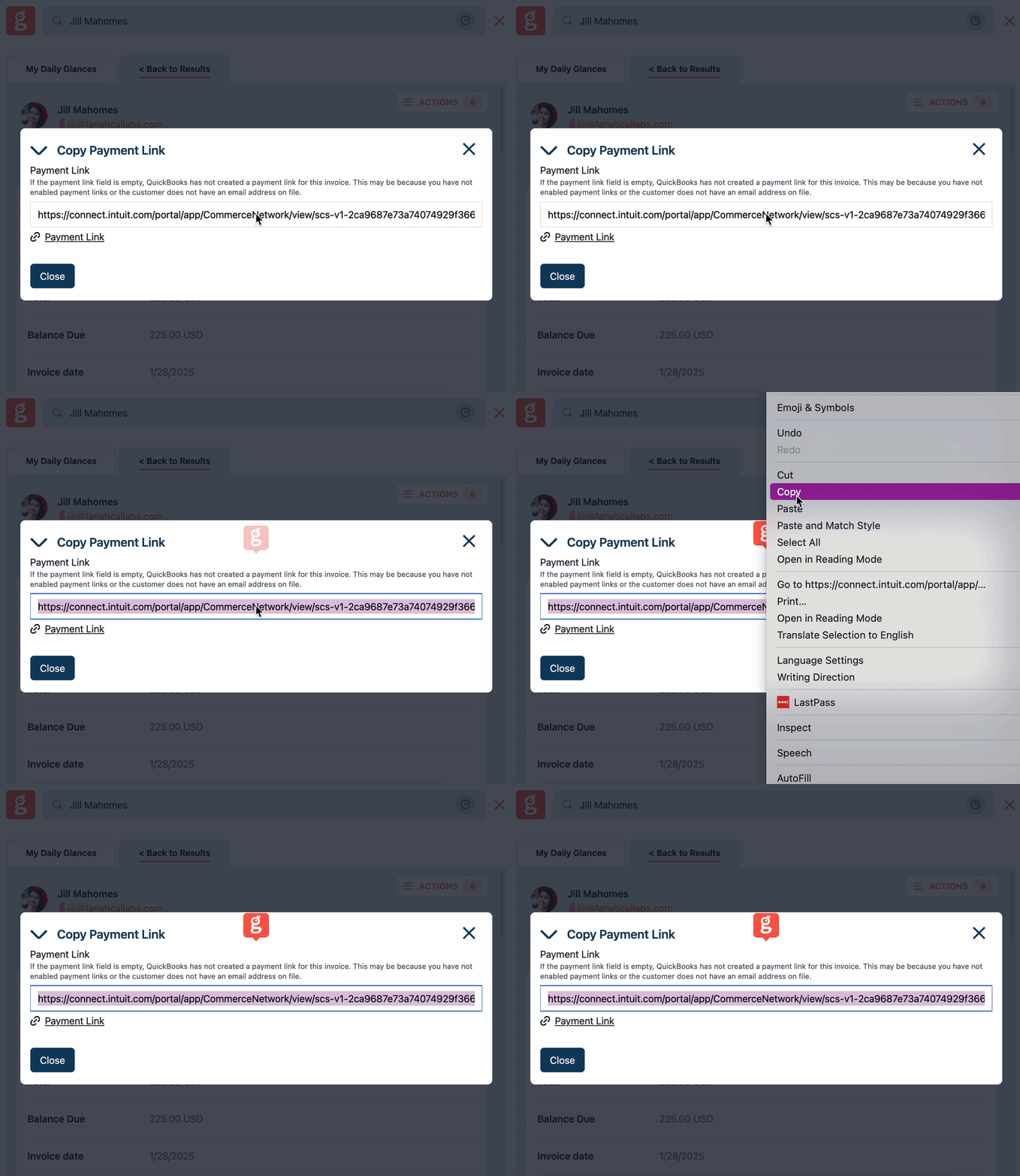
1. Navigate to a customer’s Glance by viewing upcoming invoices in My Daily Glances or searching for a customer and clicking into invoices
2. Find and click on the invoice whose link you'd like to copy
3. Click the Action menu in the top right corner
4. Select Copy Payment Link
How this update helps
Outside of saving serious time and clicks on everyday tasks, below are some immediate benefits of using these new Glances Actions for QuickBooks:
✔️ Ensure QuickBooks customer data remains up-to-date
✔️ Avoid tab switching and losing focus to complete routine tasks
✔️ Enable users to update data without direct access to main QuickBooks account
✔️ Avoid double data entry and keep the accounting books clean
✔️ Update QuickBooks data without navigating away from your preferred platform
Review a full list of available accounting Actions for QuickBooks on our support site, such as creating customers, creating invoices and estimates, creating new products and services, and many other multi-tasking functions.
Consider pre-filled forms to ditch data entry
Glances pre-filled forms take the magic of Actions to the next level by auto-completing forms on your behalf! Like having a personal workday assistant, this powerhouse feature enables you to spend less time on typing and data entry, which naturally reduces errors and the re-work needed to resolve them. From apps like monday.com and QuickBooks to your CRM of choice, this feature is compatible with loads of popular SaaS platforms and requires our mapping process to get started. See how it works in the video below.
Integrate all your apps and perform Actions, using Glances
Start your free trial to connect your favorite business apps and access your data in one easy click, from any app or webpage. You can find and connect QuickBooks, monday.com, Stripe and more apps when you are logged in to your Glances account.
More helpful steps
Schedule a demo to see the time-saving benefits of Glances in action or ask our team questions.
If you need to connect a specific app or platform with Glances that is not currently available on glances.com, please send your requests to hello@glances.com.
Find more step-by-step articles with the latest information on our support site.