How Glances Supports QuickBooks Projects

If you work with QuickBooks Online and are utilizing projects to track income, expenses, and profitability for specific work within a customer account, we'll show you how Glances supports this handy feature. If you are new to QuickBooks projects, it enables you to group invoices, expenses, and payments under a single record. Ditch the need to manually organize job-related transactions and enjoy a simplified way to monitor financial performance!
TIP: Did you know that Glances supports many of the same functions that you would have while using the QuickBooks app alone? Learn all you can achieve when you connect QuickBooks with Glances.
How Glances and QuickBooks projects work together
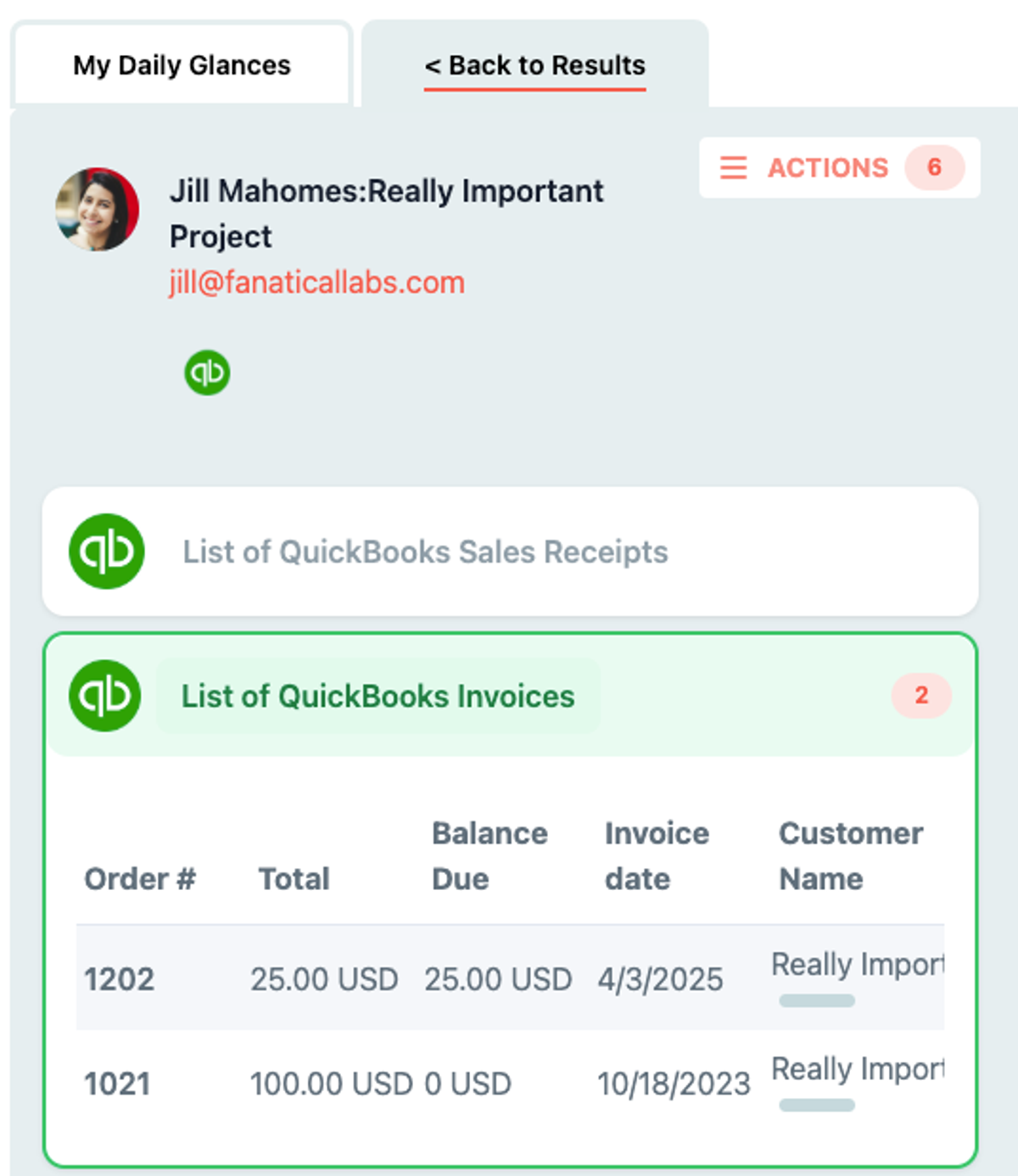
Glances connects with QuickBooks to help you search for and create invoices linked to projects. When searching in Glances, projects appear formatted as Customer Name:Project Name, allowing you to quickly identify the correct project.
For example, if your QuickBooks customer is Jill Mahomes and the project is Really Important Project, in Glances you would see:
Jill Mahomes:Really Important Project
This helps you locate the correct project. From there, you can create invoices or estimates or update project details.
Creating projects in QuickBooks
Currently, QuickBooks does not allow third-party apps like Glances to create projects via their API. This means that while you can search for and use existing projects within Glances, you must create new projects directly in QuickBooks. There are two options for creating a project:
- Option 1: Create a project in QuickBooks
- Option 2: Create a sub-customer using Glances, then convert the sub-customer to a project within QuickBooks
Available Actions for QuickBooks projects
Actions allow you to complete a task in another app directly from Glances. While Glances supports almost the same functionality you'd get while using the QuickBooks platform alone, below are the list of available Actions you can perform specific to projects.
- Update QuickBooks customer (support article)
- Create QuickBooks invoice (support article)
- Edit QuickBooks invoice
- Send QuickBooks invoice (support article)
- Create QuickBooks estimate (support article)
- Edit QuickBooks estimate
- Send QuickBooks estimate (support article)
- Convert QuickBooks estimate to invoice (support article)
TIP: Get full list of everything you can do with QuickBooks using Glances.
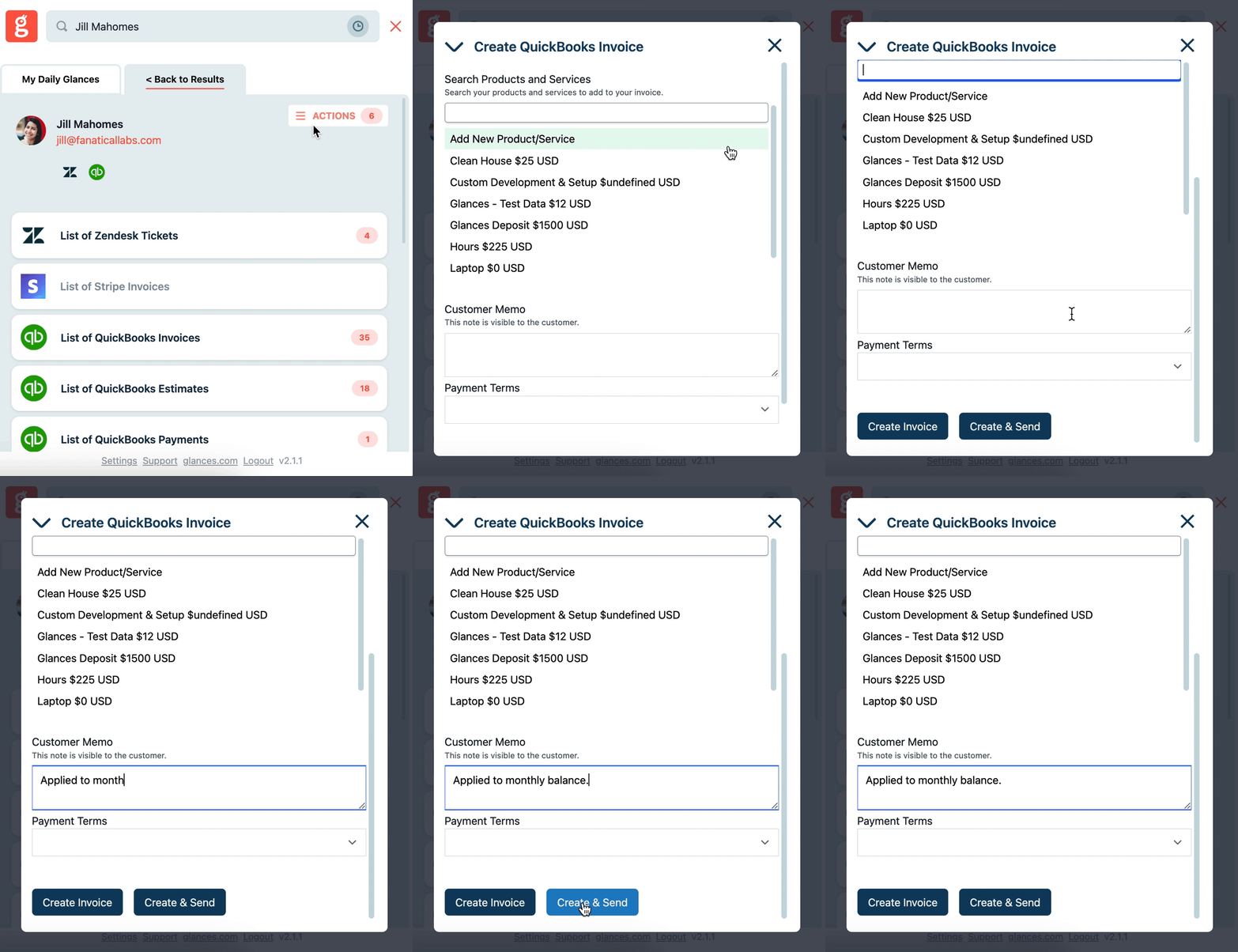
Watch how easily users can create a new QuickBooks invoice in the quick product animation below. We’re continually adding more multi-tasking features, so be sure to review a full list of available accounting Actions for QuickBooks on our support site.
What QuickBooks Actions can improve your daily workflow?
Did you know these QuickBooks Actions are possible for all Glances users because our customers requested them? If you have an action or function in mind for any of your apps connected with Glances that will make your workday simpler, we’re here for it. Use our Request an Action calendar to select a time to briefly discuss your current apps and needs with our team.
Integrate all your apps and perform Actions, using Glances
Start your free trial to connect your favorite business apps and access your data in one easy click, from any app or webpage. You can find and connect QuickBooks, monday.com, Stripe and dozens of more apps when you are logged in to your Glances account.
More helpful steps
Schedule a demo to see the time-saving benefits of Glances in action or ask our team questions.
If you need to connect a specific app or platform with Glances that is not currently available on glances.com, please send your requests to hello@glances.com.
Find more step-by-step articles with the latest information on our support site.