Who Can View What? When Adding Personal Connections Makes Sense

Not all data is meant for all eyes 👀
At Glances, our primary goal is to make your dream workflows a reality. To achieve that, we first enable your multiple business apps to work together securely, then second offer flexibility in how you prefer to view data and take action. While some data is meant for a collective group, other data is personal and only relevant to specific teammates. Today we’ll cover the two types of app connections (team and personal) and when it makes the most sense to hyper-customize Glances for individual team members with personal connections.
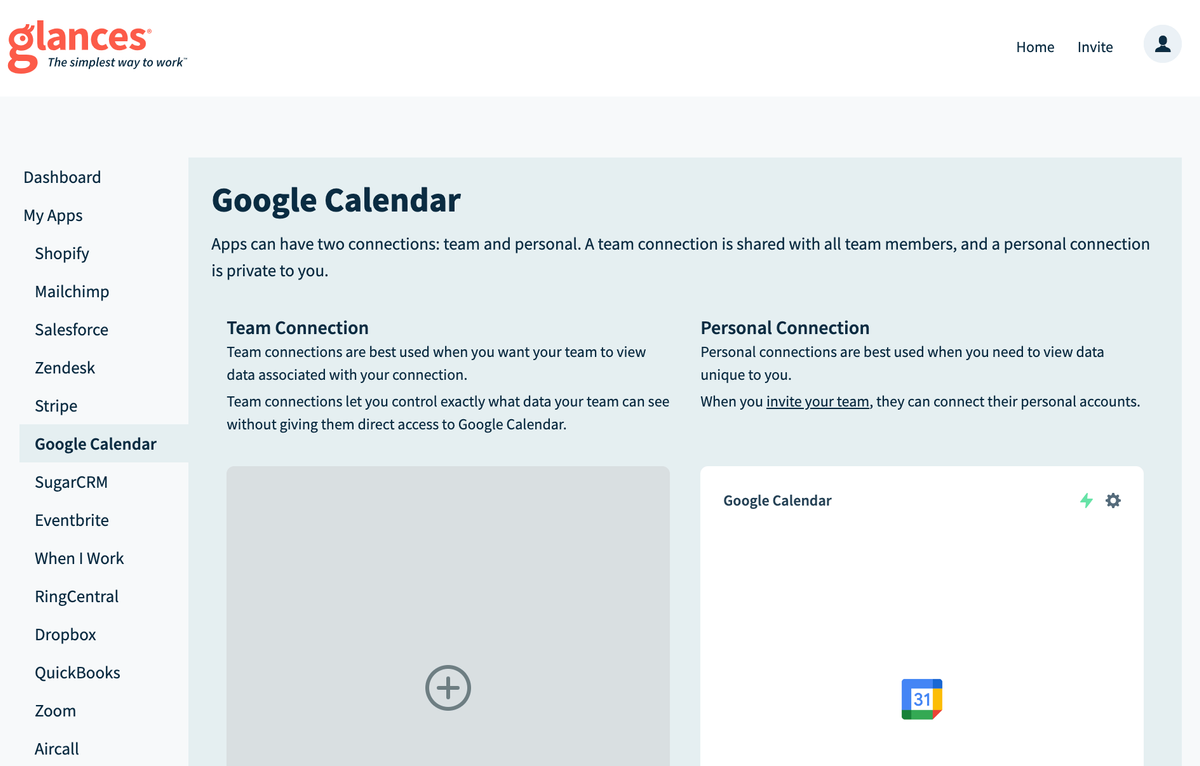
Manage who sees what data with 2 levels of app connections
Team connections make the most sense when you want to use one connection to ensure all team members have access to the data they need. This may be to reduce seat costs, share data more broadly, or to simplify your app ecosystem. Consider team connections for granting overall access to CRM data from Salesforce or Pipedrive, email marketing campaigns from Mailchimp or Constant Contact, or customer interactions from Zendesk or Intercom.
Personal connections make the most sense when team members have data unique to them that they need to see privately. For example, a team member who uses Asana to view their assigned tasks or a team member who uses QuickBooks to view upcoming invoices assigned to themselves. Personal connections work well for any apps that contain calendars, tasks, projects, and personal work assignments.
Learn more about these connection types in our support article.
2 strategies for adding personal connections
Limit access and keep data clean
In many companies, not every employee needs full access to an app account and the complete data it hosts. Whether for confidentiality, security, or another valid reason, having these parameters in place is important. That is why Glances allows admins to specify who can view what data on a team using personal connections. For example, enable a specific team member to only view CRM leads assigned to them without granting full access to the Salesforce account data.
Keep personal information private
Email platforms are a great example of a personal-level app, where you have information that you don’t want the entire company to search or access. Using personal connections, employees can connect their company Outlook or Gmail accounts to Glances, but ensure their email communications are viewable to their eyes only. If an employee also has access to team-shared email accounts, such as generic support or sales inboxes, simply use team connections for that user (and more) to view and access those shared messages. The same concepts apply to any apps that utilize personally-assigned meetings, tasks, projects, and assignments.
Personal connections are designed to help your team create more meaningful ways to engage with work. Learn how to add a personal app connection using Glances or watch the video below.
Watch Video: How to Add Personal Connections Glances
More helpful steps
Schedule a demo to see the time-saving benefits of Glances in action or ask our team questions.
If you need to connect a specific app or platform with Glances that is not currently available on glances.com, please send your requests to hello@glances.com.
Find more step-by-step articles with the latest information on our support site.