New Actions for Managing Super-fast Stripe Transactions

Your payment processing tasks have never been easier
Glances has been helping Stripe users save time and automate tasks across their various business apps that typically can’t be automated. Using the recently released Create Stripe Payment Action and Refund Stripe Payment Action, Glances users with Stripe connected will have the ability to quickly search for a customer contact, then efficiently create a new charge or refund them for past charges. These two supercharged Actions will give you the power to streamline payments and enhance productivity!
As usual, Glances Actions enable you and your team to handle these tasks (and many others) directly within Glances, so you can streamline workflows while continuing to work in your preferred platform or website.

Why should you care?
Outside of saving serious time and clicks on tedious tasks, below are some immediate benefits of using this new Glances Action:
✔️ Ensure Stripe customer data remains up-to-date
✔️ Avoid tab switching and losing focus to complete routine tasks
✔️ Enable users to create transactions without direct access to main Stripe account
✔️ Update Stripe data without navigating away from your preferred platform
✔️ Avoid pricey and messy two-way data integrations
Review a full list of what you can do with Stripe and Glances on our support site.
Getting started with these new Stripe Actions
Once you have successfully connected Stripe with Glances, you can click to open Glances anywhere online to access the Actions menu and start managing Stripe payment tasks directly from Glances. Follow these next steps:
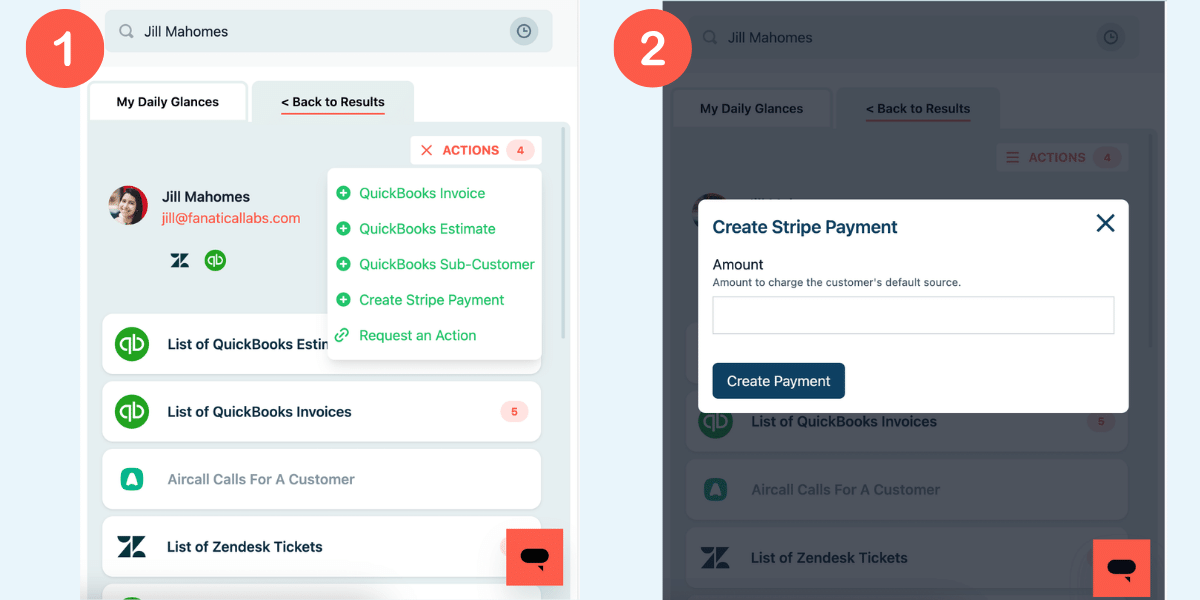
Create New Stripe Payment
1. Search for and navigate to a contact
2. From the customer view, click the Actions menu in the top right corner
3. Select Create Stripe Payment
4. Enter the amount to charge
5. Click Create Payment to save
Refund Stripe Payment
1. Search for a contact
2. Navigate to the Stripe payment you'd like to refund
3. From the Stripe payment, click the Actions menu in the top right corner
4. Select Refund Stripe Payment
5. Enter required information
6. Click Refund Payment to save
Note: Like refunds processed directly in Stripe, it may take a few days to process the refund into the customer's account.
Watch Video: See Stripe Data Anywhere
What Actions can improve your daily workflow?
If you have an action or function in mind for any of your apps connected with Glances that will make your workday simpler, we’re here for it. Use our Request an Action calendar to select a time to briefly discuss your current apps and needs with our team.
Integrate all your favorite apps and perform Actions, using Glances
Start your free trial to connect your favorite business apps and access your data in one easy click, from any app or webpage. You can find and connect Stripe and more apps when you are logged in to your Glances account.
More helpful steps
Schedule a demo to see the time-saving benefits of Glances in action or ask our team questions.
If you need to connect a specific app or platform with Glances that is not currently available on glances.com, please send your requests to hello@glances.com.
Find more step-by-step articles with the latest information on our support site.