Feature Update: Super-Customize Your Glances Widget Location

Our helpful widget, where you want it
The Glances widget is always hanging around your digital workspace in the bottom-right corner, one click away from showing all your data across apps in a 360-degree view. While its default location has been trusty and reliable, we realize some users may prefer to access the widget from a different spot on the webpage. For example, perhaps its location works great with your email inbox layout, but it’s partially blocking the help desk widget of your CRM platform.
In this case, our development team just released a new update which enables you to click, drag, and drop the Glances widget to any location within your web browser. Once the location has been changed, Glances will remember it until you move it again, whether it's 5 days or 5 seconds later. This small-yet-powerful change makes Glances easier to find and use based on your personal preferences.
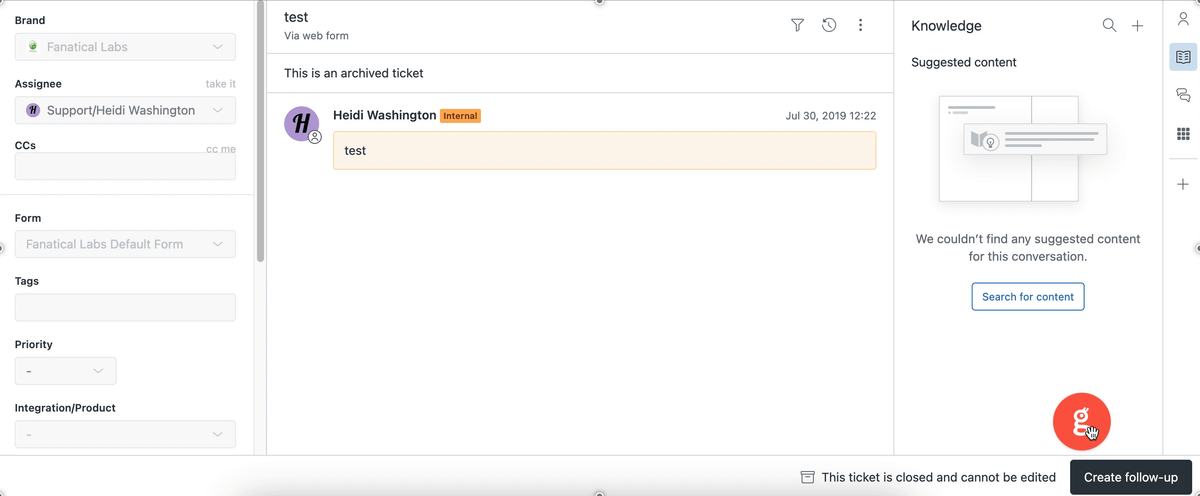
Changing widget location in Chrome and Edge
To change the location of the widget, you can drag-and-drop the widget anywhere on the page. The widget remains in your chosen spot until you move it away.
1. Click on the widget and hold your mouse key down
2. Move it to the location you want the widget to appear
3. Release your mouse key
Note: The Glances widget will update automatically. If you have an older version of Glances and this feature isn't yet appearing for you, trying restarting your browser or your computer. You can submit a support request for any further issues.
Changing widget location in Firefox
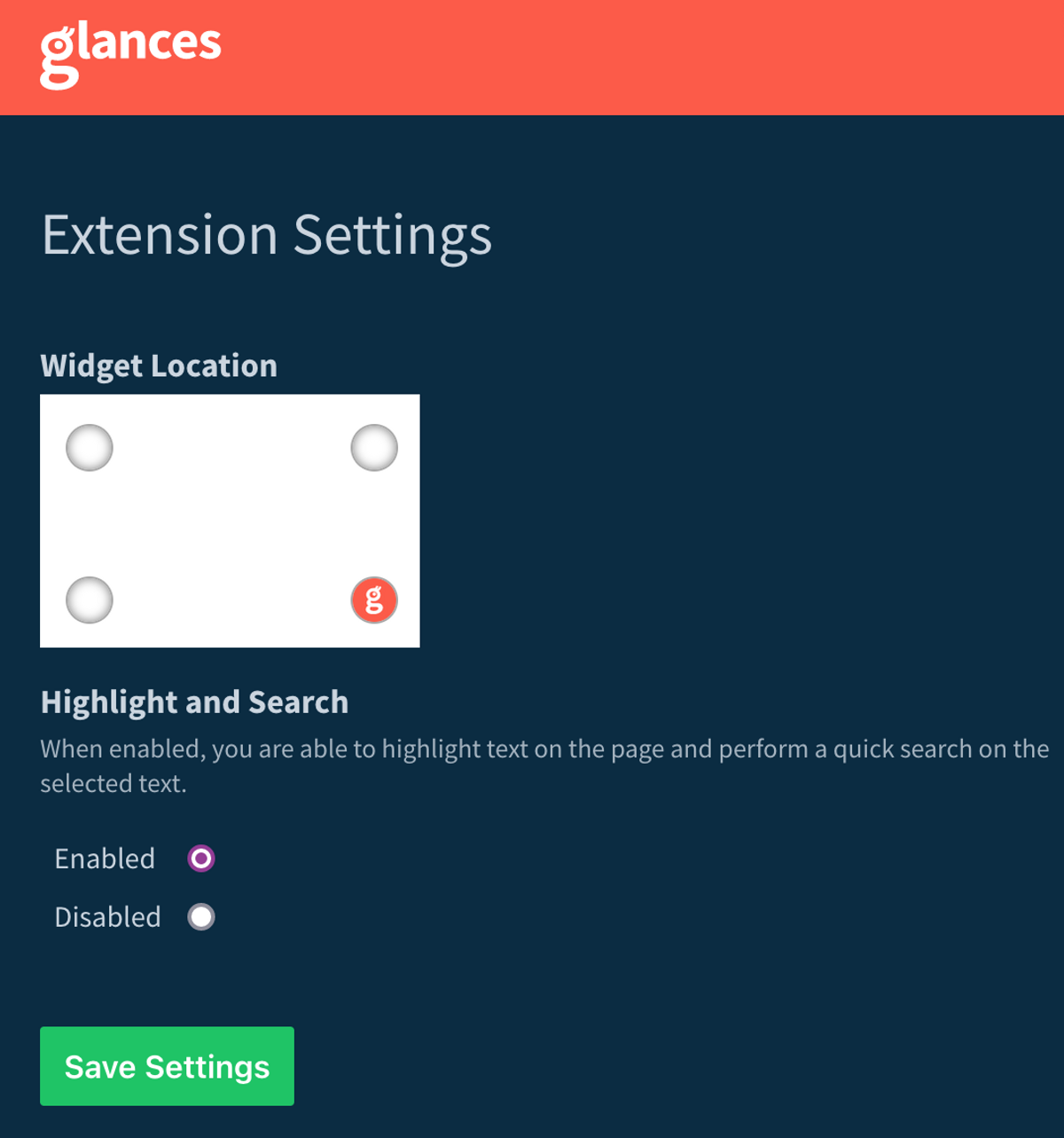
1. From within your browser bar, click the Glances browser extension
2. Under Widget Location, click the corner you'd like Glances to appear
3. Click Save Settings
Disabling Glances from certain websites
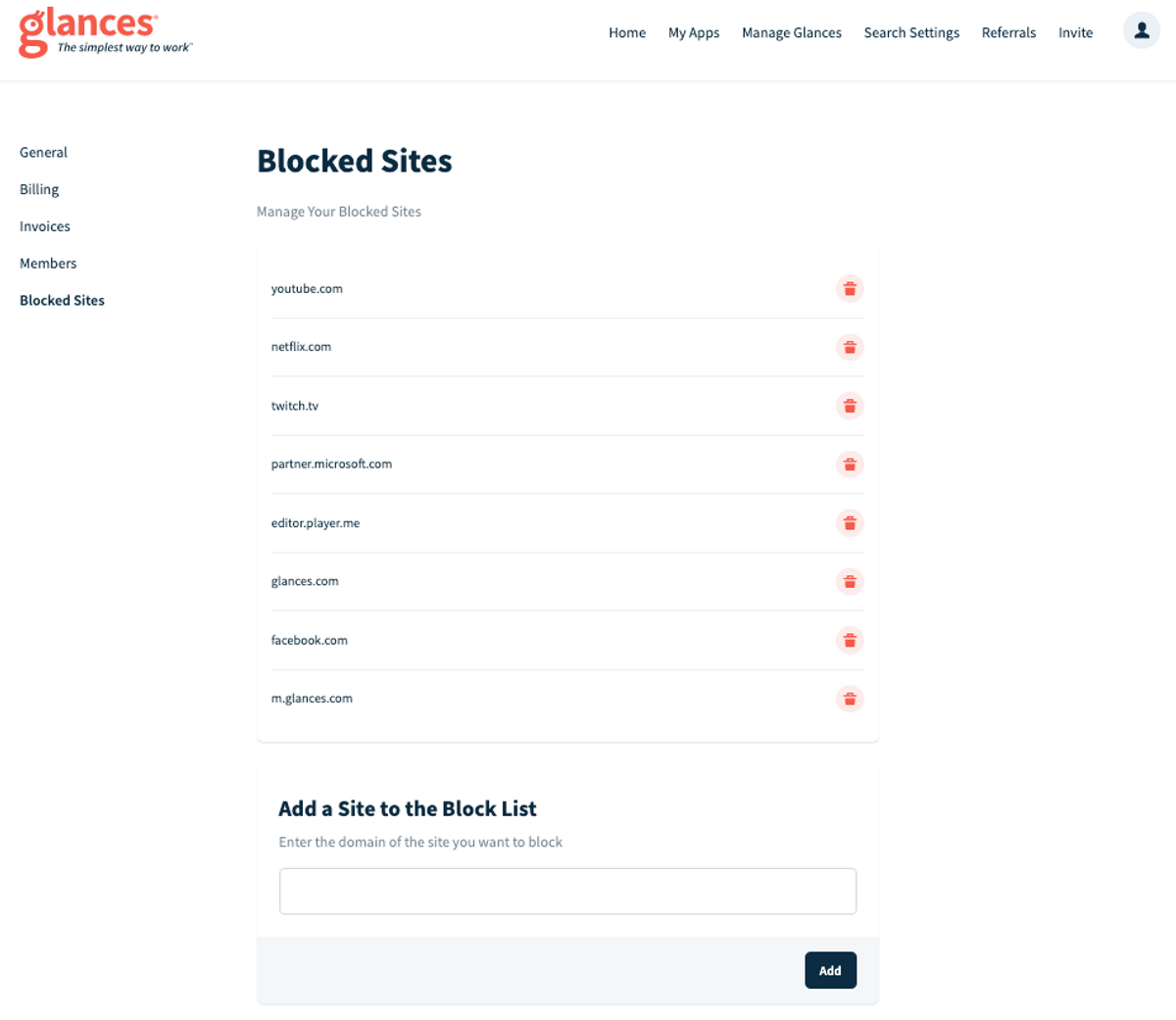
If you need to disable Glances from appearing and working on certain websites (think Facebook, YouTube, Netflix, etc.) you can easily add and remove blocked sites for you and your team. Simply follow the instructions in our support article to manage your block list.
What features can improve your daily workflow?
If you have a new feature or Action in mind for any of your apps connected with Glances that will make your dream workflows a reality, use our Request an Action calendar to select a time to briefly discuss your current apps and needs with our team.
Integrate all your favorite apps, using Glances
Start your free trial to connect your favorite business apps and access your data in one easy click, from any app or webpage. You can find and connect apps when you are logged in to your Glances account.
More helpful steps
Schedule a demo to see the time-saving benefits of Glances in action or ask our team questions.
If you need to connect a specific app or platform with Glances that is not currently available on glances.com, please send your requests to hello@glances.com.
Find more step-by-step articles with the latest information on our support site.