5 Underrated Glances Features to Love

Oftentimes, it’s the small things in your workday that can make the sweetest impact. Today we’re unwrapping several underrated and lesser-known Glances features that can add a positive punch to you and your team’s daily workflows. Outside of connecting all your favorite business apps to view your data and complete Actions from one place, we suggest you take advantage of these other built-in functions worthy of appreciation.

Try keyboard shortcuts for Actions
By default, Glances already reduces tab toggling, app switching, and clicking around, but you can take it up another notch with keyboard shortcuts for Actions. This helpful feature allows you to navigate between fields and input data primarily using your keyboard and minimizing the need for mouse interaction and cliking. It’s great for Action forms like creating invoices and estimates, entering new CRM customers, adding appraisal orders, or whatever unique workflow your team needs. Learn how to get started with Action keyboard shortcuts.
Customize the widget location
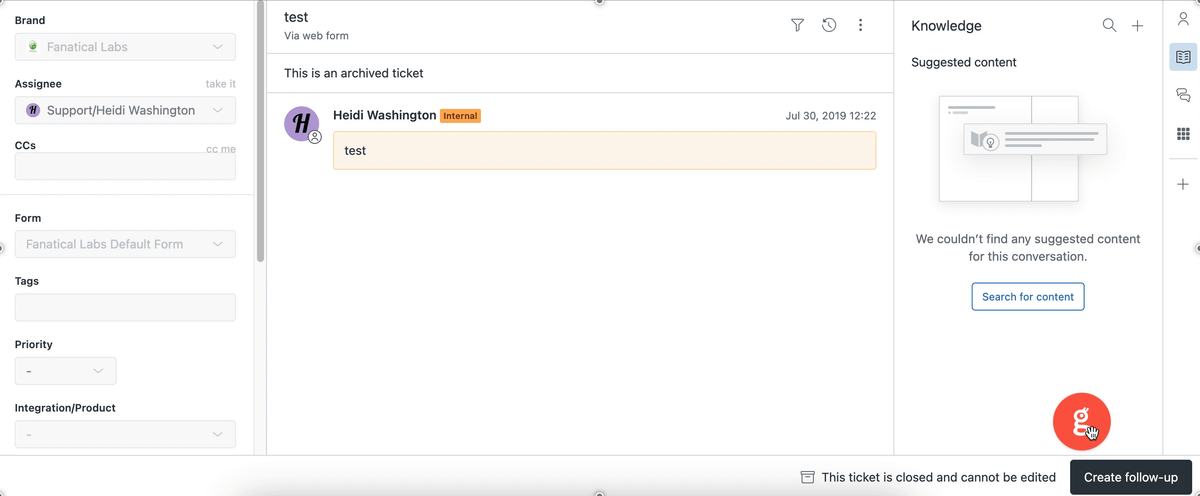
The Glances widget is always hanging around your digital workspace in the bottom-right corner. While its default location has been trusty and reliable, we realize some users may prefer to access the widget from a different spot on the webpage. For example, perhaps its location works great with your email inbox layout, but it’s partially blocking the help desk widget of your CRM platform. If that’s the case, you can move it!
Simply click, drag, and drop the Glances widget to any location within popular web browsers like Chrome and Edge. Once the location has been changed, Glances will remember it until you move it again. This small-yet-powerful change makes Glances easier to find and use based on your preferences. Learn how to change the Glances widget location.
Keep tabs on personal to-dos with My Daily Glances
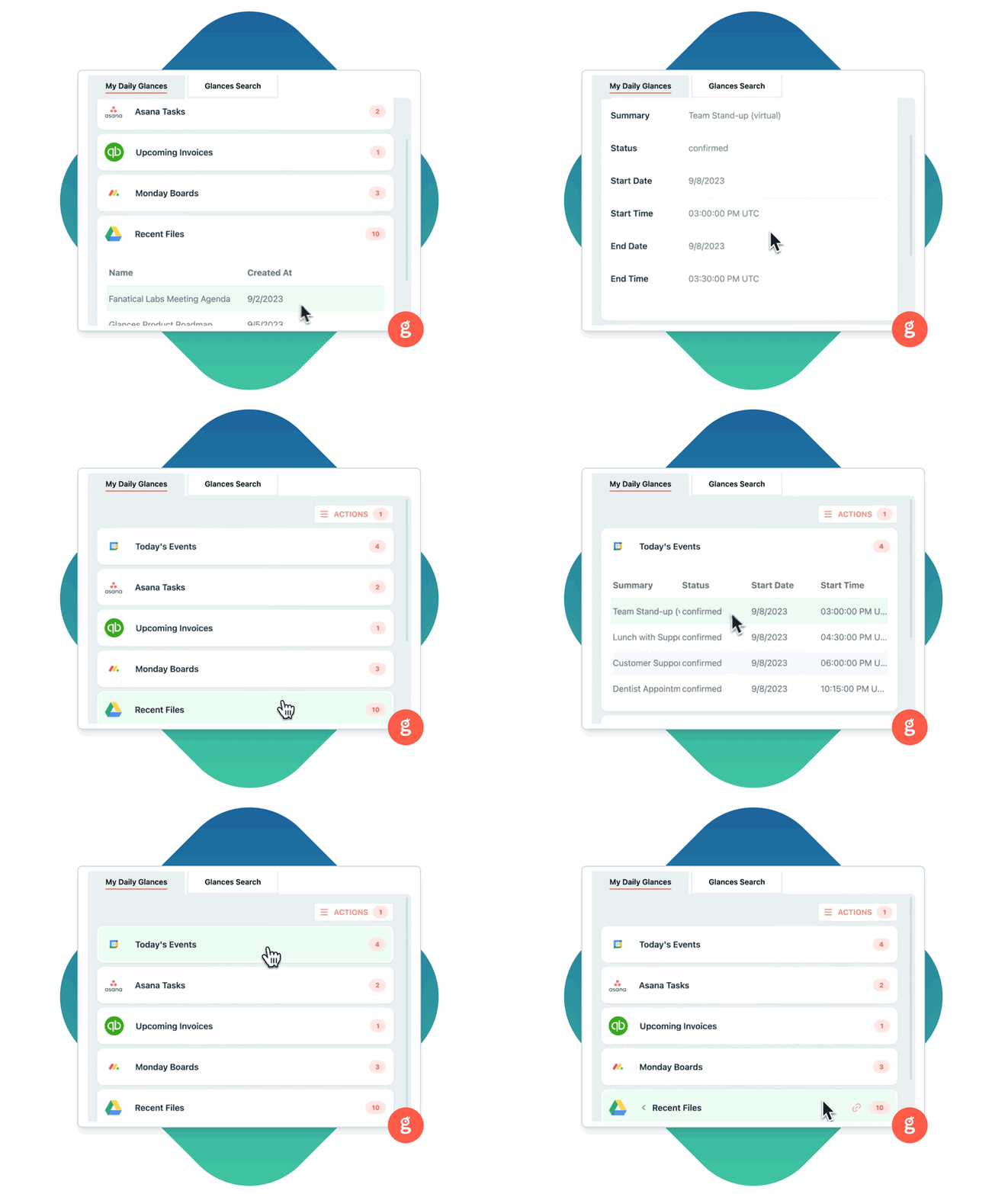
My Daily Glances is the “you view” side of Glances. Once you have connected your desired apps, you can immediately start viewing data related to your unique workday. Check on your personal calendars, upcoming invoices, project to-dos, and more using the My Daily Glances tab, so you always know what tasks to prioritize. Watch how the My Daily Glances view works in the animation below and learn more about editing what personal data you would like to view in our helpful support article.
Manage who sees what data with app connections
While some data is meant for a collective group, other data is personal and only relevant to specific teammates. Glances offers two levels of app connections so you can make sure the right information is readily available for the right teammate(s). Learn more about these connection types below or jump straight to our support article.
Team connections make the most sense when you want to use one connection to ensure all team members have access to the data they need. This may be to reduce seat costs, share data more broadly, or to simplify your app ecosystem. Consider team connections for granting overall access to CRM data from Salesforce or Pipedrive, email marketing campaigns from Mailchimp or Constant Contact, or customer interactions from Zendesk or Intercom.
Personal connections make the most sense when team members have data unique to them that they need to see privately. For example, a team member who uses Asana to view their assigned tasks or a team member who uses QuickBooks to view upcoming invoices assigned to themselves. Personal connections work well for any apps that contain calendars, tasks, projects, and personal work assignments.
Use the team selection tool for multiple app accounts
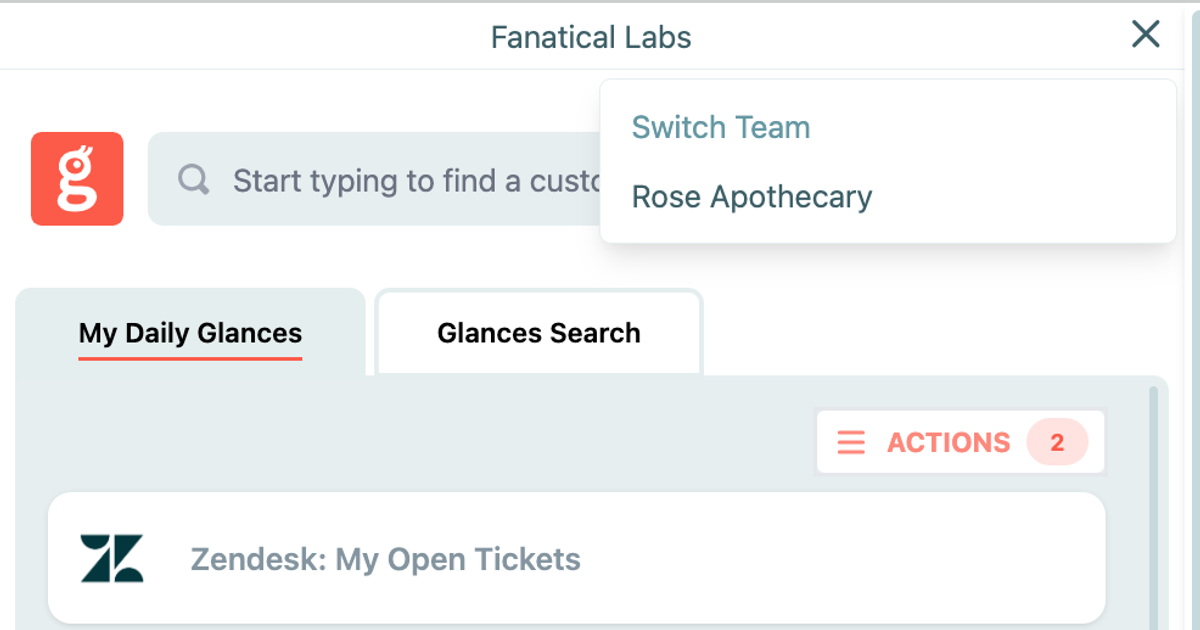
From standard businesses representing one brand to parent organizations managing multiple companies, Glances works as flexibly as your unique structure requires. This especially rings true for handling multiple app accounts and users on more than one team. Using the team selection feature, you can quickly toggle between different app accounts while using Glances. No logging in and out of app accounts, no navigating away from your work, and no wasting of your valuable time and focus. Learn how simple it is to switch teams on glances.com, directly in the Glances browser extension, or in-app with monday.com.
It's love at first Glance when you connect your apps with Glances
Start your free trial to connect your favorite business apps and access your data in one easy click, from any app or webpage. You can find and connect QuickBooks, monday.com, Stripe and dozens of more apps when you are logged in to your Glances account.
More helpful steps
Schedule a demo to see the time-saving benefits of Glances in action or ask our team questions.
If you need to connect a specific app or platform with Glances that is not currently available on glances.com, please send your requests to hello@glances.com.
Find more step-by-step articles with the latest information on our support site.