2 New Glances Actions to Improve Your QuickBooks Billing Processes

More Actions added for QuickBooks users
The billing process can be a tedious time-suck for teams using platforms like QuickBooks, Xero, and Stripe, but fortunately with Glances Actions, it can be quick, painless, and even convenient!
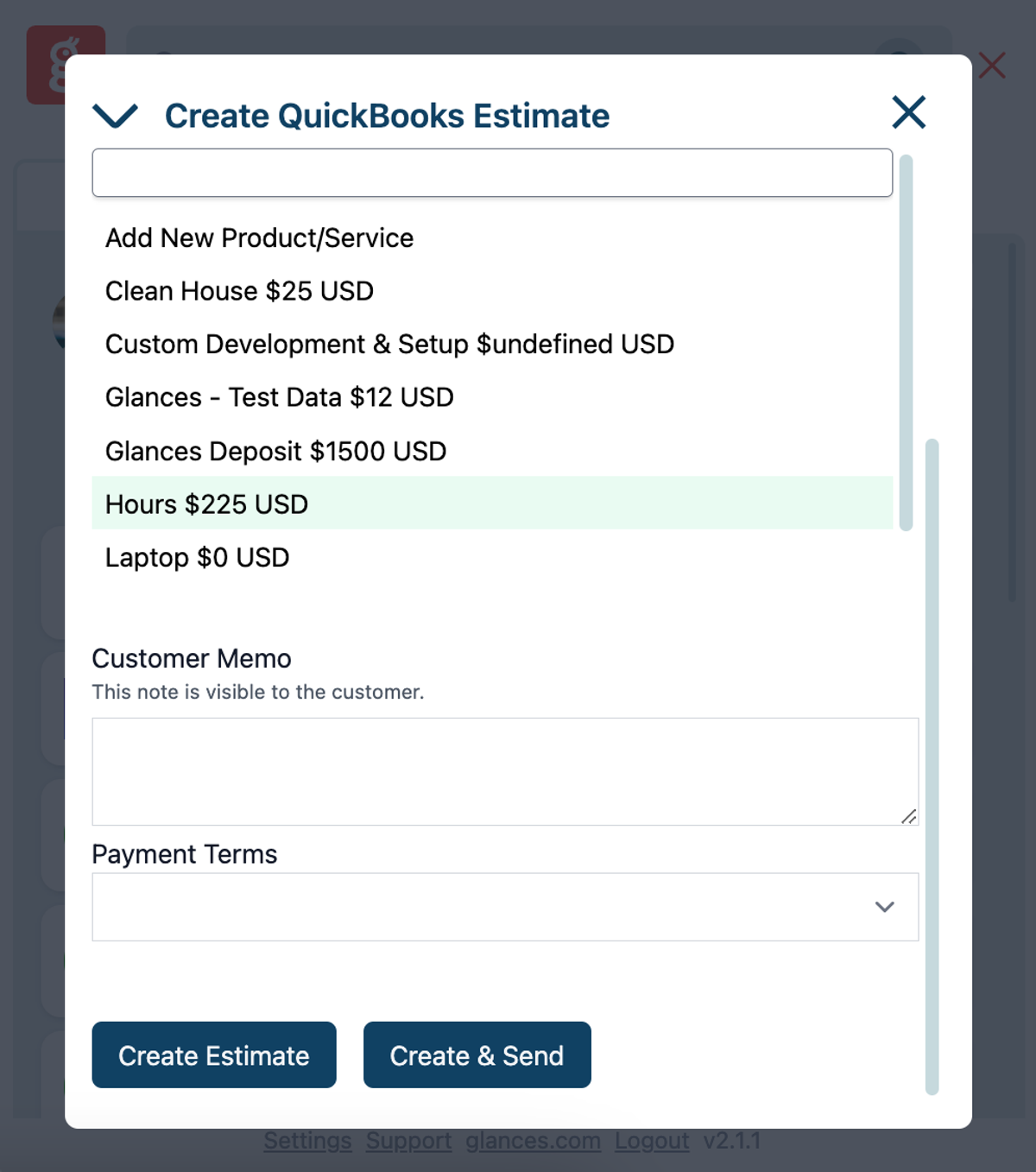
Since its launch, Glances has been helping QuickBooks users save time and automate tasks across their various business apps that typically can’t be automated. With two new QuickBooks Actions recently added, any Glances users with QuickBooks connected will now have the ability to 1) click a Create & Send button for estimates (previously this worked for invoices only), and 2) write a customer-facing memo for both estimates and invoices. These updates are automatically available for existing and new Glances users.
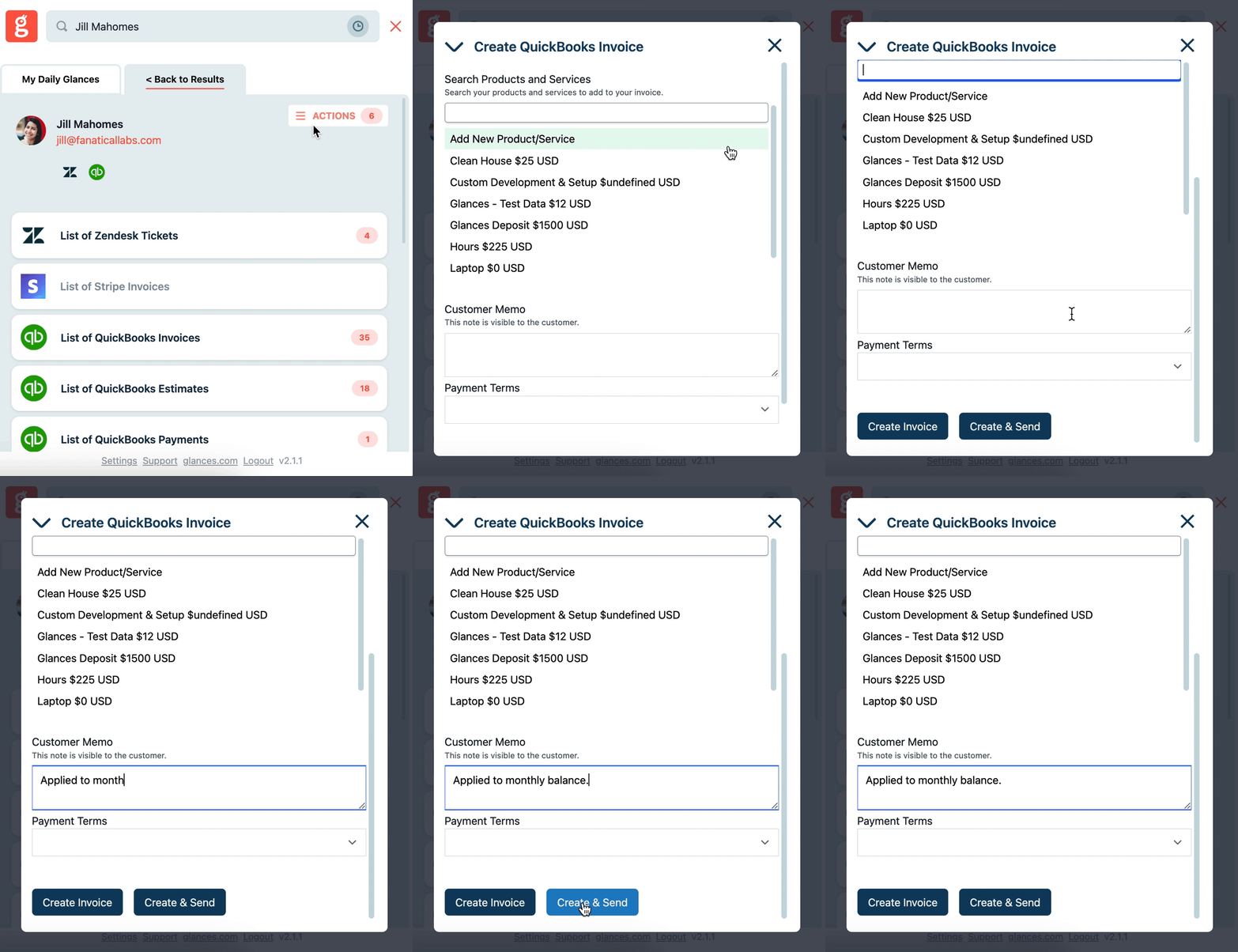
As usual, Glances Actions empower you and your team to handle these tasks (and many others) directly within Glances, so you can streamline workflows while continuing to work in your preferred platform or website. See how it all works in the quick animation below.
Why should you care?
Outside of saving serious time and clicks on everyday tasks, below are some immediate benefits of using these new Glances Actions for QuickBooks:
✔️ Ensure QuickBooks customer data remains up-to-date
✔️ Avoid tab switching and losing focus to complete routine tasks
✔️ Enable users to update data without direct access to main QuickBooks account
✔️ Update QuickBooks data without navigating away from your preferred platform
Review a full list of available accounting Actions for QuickBooks on our support site, such as creating customers, creating invoices and estimates, creating new products and services, and many other multi-tasking functions.
Getting started with these new QuickBooks Actions
Once you have connected QuickBooks with Glances, you can click to open Glances anywhere online to access the Actions menu and start creating estimates and invoices directly from Glances. Follow these next steps:
1. Navigate to a customer's Glance
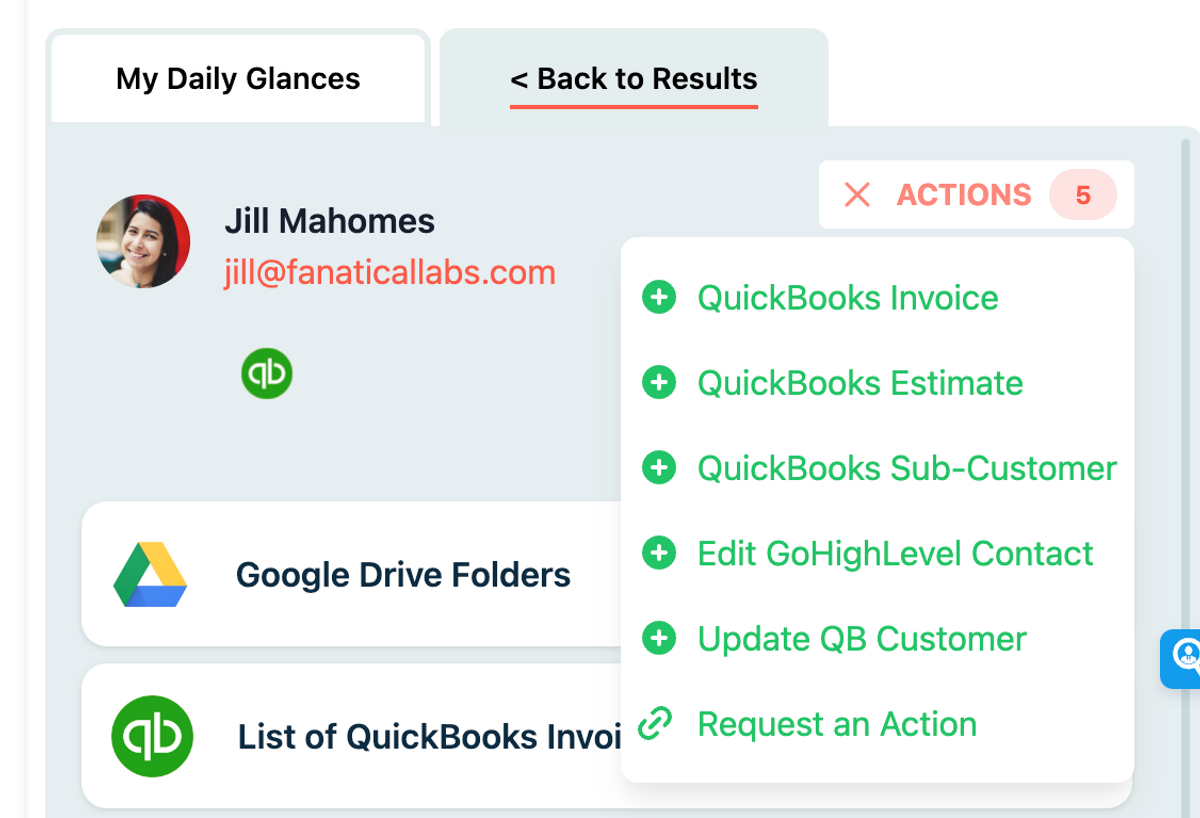
2. From the customer view, click the Action menu in the top right corner
3. Select QuickBooks Estimate or QuickBooks Invoice
4. Edit the form details (add products, write a customer memo, etc.)
5. Click Create Estimate/Invoice to create a new document or Create & Send to quickly create and send the document to your customer
Watch Video: Create QuickBooks Invoices in Less Than 30 Seconds!
What Actions can improve your daily workflow?
Did you know these new Actions are possible for all Glances users because one of our customers requested it? If you have an action or function in mind for any of your apps connected with Glances that will make your workday simpler, we’re here for it. Use our Request an Action calendar to select a time to briefly discuss your current apps and needs with our team.
Integrate all your favorite apps and perform Actions, using Glances
Start your free trial to connect your favorite business apps and access your data in one easy click, from any app or webpage. You can find and connect QuickBooks and more apps when you are logged in to your Glances account.
More helpful steps
Schedule a demo to see the time-saving benefits of Glances in action or ask our team questions.
If you need to connect a specific app or platform with Glances that is not currently available on glances.com, please send your requests to hello@glances.com.
Find more step-by-step articles with the latest information on our support site.